
Code Slots
Code Slots is a rework of how you put values into a code block. It is not finished, and we are showing it now because we would rather change it before everyone has learned it.
The goal
Section titled “The goal”A new way of filling in arguments that suits power users and for brand new users!
Additionally, allowing for larger optimizations by simpling the type system to instead use less “inferencing”. As, DiamondFire will now know which items are for which arguments immediately!
The action menu
Section titled “The action menu”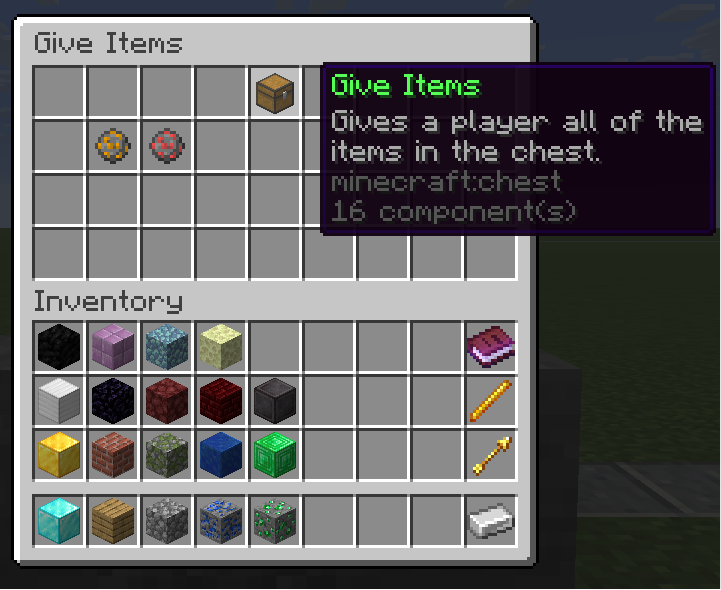
Opening a code block no longer shows an empty chest. It shows the action’s arguments, each in its own slot, each with an icon describing what belongs there.
- The action icon sits at the top with the action’s name and description.
- Each argument slot shows either the value you have set, or a placeholder naming the type and
what it is for, like
Number - Mining speedorBlock(s) - Blocks to apply the rule for. - Tags sit along the right-hand edge, away from the values.
Single Slot
Section titled “Single Slot”Setting a value, swapping it for another, and taking it back out, all in the argument’s own slot.
A single-value argument behaves like an inventory slot that only accepts the right kind of thing. Put a value in and it is set. Put a different value on top and it swaps, with the old one coming back to you. Take it out and the argument is empty again, showing its placeholder.
Plural arguments
Section titled “Plural arguments”A plural argument taking a variable as the whole list, then taking individual values inline.
An argument that takes many values, like Item(s) to give, Block(s) or Sound(s), has one slot
like everything else, and reads it two ways:
- List shortcut. Drop a variable in and that variable is the list. The slot shows the variable.
- Inlined list. Drop values in and they build up as entries. The slot shows the value itself while there is exactly one, then the argument icon with a count once there are more. (Supports more than 27 items!)
Clicking the slot with an empty hand opens a list editor where you can reorder and remove entries.
Note: Some actions refuse the shortcut on purpose, such as Append Value, which nests a list instead of merging it. In those, a variable correctly becomes one entry rather than the whole list.
OR arguments
Section titled “OR arguments”Set to HSB Color: choosing between “a list of H, S, B values” and “three separate numbers”, and filling each one in.
Some arguments accept more than one shape of input. Set Player Head takes either a head item or a skull owner. Set to HSB Color takes either one list or three numbers.
- The argument’s icon lists every form, one argument per line, with a pink
ORbetween them. The selected form is white and the others are grey. - If the selected form has exactly one argument, the slot is that argument. You set it directly, with no extra menu.
- Clicking an empty either/or slot with an empty hand opens the form menu, which is one row per form, with that form’s arguments laid out along it and a Select toggle on the left.
- Filling in any form selects it. You do not have to choose first and then fill it in.
- A form that already holds values is never switched away from on its own.
Quick set
Section titled “Quick set”Quick set on several arguments in a row: recent values along the inventory row, creator buttons around the argument, and a typed value going straight in.
This is the biggest quality-of-life change in the project, and it is aimed at the “leave the chest, go and make a value, come back” problem. It works on most arguments, currently the ones taking variables, numbers and text.
Pressing Q on an argument opens a menu built around that one argument:
-
The argument stays where it is. Its slot does not move, so you do not lose your place. The menu title is the argument’s own name, like
Mob type,HealthorItem(s) to give. -
Creator buttons appear diagonally around it. One button per value type this argument accepts. Variable is always first. Clicking one opens a text input dialog, so you type the value and hit Confirm. For variables the dialog also has a scope picker, which defaults to
LINE. -
Your recent values fill the inventory row. Values you have used lately, filtered to the types this argument accepts, laid out where your inventory normally is. Click one and it goes straight in.
-
Back to the menu! Setting a value returns you to the action’s arguments.
This is meant to reduce the amount of friction for setting certain code variables, all while still being able to stay within the menu itself!
Shift-clicking, punching and out-of-order placement
Section titled “Shift-clicking, punching and out-of-order placement”Shift-clicking values out of the inventory and punching them straight at the block. Each value finds its own argument.
This is the fastest way to fill a block, and it changes the most about how the chest works.
Two gestures do the same thing:
- Shift-click a value in your inventory while the argument menu is open.
- Punch the block (left-click it) with a value in your hand.
Either way, DiamondFire goes through the action’s arguments and puts the value in the first argument that will accept it.
It supports out of order placement
Section titled “It supports out of order placement”Rather than just filling slot 1, then slot 2, then slot 3. You throw values at the block and it sorts them out.
Punch a number at Add Tool Mining Rule and it lands in Mining speed, because that is the only
argument a number belongs to. Punch an item and it lands in Item to change. Punch a block and it
goes to Block(s). The order you punch them in does not matter, because the types already say where
each one goes.
The same pass handles the harder cases:
- A filled single-value argument refuses, and the pass moves on to the next one, so punching four values in a row fills four different arguments instead of fighting over the first.
- A plural argument appends, so repeated values of the same type stack up where they should.
- An either/or argument tries its selected form first. If that refuses and the form is empty, the other forms are tried, and the first one to accept becomes selected.
It syntax checks before it writes
Section titled “It syntax checks before it writes”Punching values at a block. Each one is checked against the argument before it is written, and the display beside the block updates as arguments fill in.
Nothing is placed on a guess! It must compile and be the right type in order to be inserted into the slot.
Sending feedback
Section titled “Sending feedback”You cannot test this yet, so what we need is the feedback you can give from the clips and from knowing how you already work. The most useful kind names a specific action and a specific thing you do with it. “Quick set feels clunky” is hard to act on. “On Play Sound, the creator buttons would land where I expect the sound to already be” is helpful!
Nothing here is settled!! So we would like as much feedback as we can get.